
# :-: xgboost复现解决步骤
| 适用范围 | 适用版本 | 人员 | 发布时间 | 文档版本 |备注 |
| --- | --- | --- | --- | --- |--- |
| 服务器操作系统 | V10-SP1 | 王国武 |2022.3.23| V1.0|发布|
| 服务器操作系统 | V10-SP1 | 张志勇 |2022.3.23| V1.1|模板调整|
*****
## 1. 问题环境复现
| 硬件环境 | 软件环境 | 第三方软件 |
| --- | --- | --- |
| Taishan200 | 银河麒麟高级服务器操作系统V10 SP1 0711 | GoldenData HD |
| 如有特殊配置需列出 | 内核号:4.19.90-17.ky10.aarch64 | Spark2.4.3 |
| 主机/虚拟机 | 主机 | Xgboost0.90 |
| 网络环境 | | |
## 2. 问题描述及复现步骤
### 2.1 问题描述
测试环境中进行AI平台mole工具测试,在spark分散的各节点无法执行xgboost,执行xgboost底层运行调c++,发现缺库,然后报错。

### 2.2 复现步骤
搭建环境
安装java-1.8.0-openjdk-devel-1.8.0.242.b08-1.h5.ky10.aarch64.rpm
`rpm -ivh java-1.8.0-openjdk-devel-1.8.0.242.b08-1.h5.ky10.aarch64.rpm`
把csv.tar.gz解压到/root目录下
`cd /root`
`tar xvf csv.tar.gz`
`[root@localhost xcc]# tar xvf demo.tar.gz`
`[root@localhost xcc]# cd demo`
`[root@localhost demo]# ./mvnw clean package`
`[root@localhost demo]# java -jar ./target/demo-0.0.1-SNAPSHOT.jar`
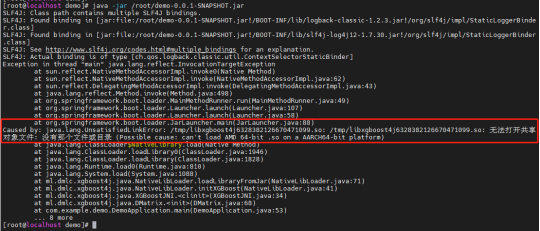
出现can't load AMD 64-bit .so on a AARCH64-bit platform错误
### 2.3 解决方案:
问题定位分析:
由于xgboost4j没有AARCH64平台的libxgboost4j.so库,查找xgboost-0.90.jar文件,需要用到libxgboost4j.so,因此需要重新编译xgboost来生成AARCH64平台下的libxgboost4j.so,解决这个缺少库的错误。
在arm平台上重新编译xgboost4j, 把编译好的xgboost4j-0.90.jar包放到本地maven源中
`[root@localhost xcc]# cd demo`
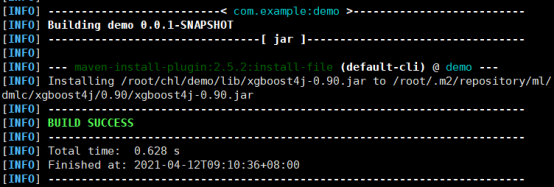
`[root@localhost xcc]# ./mvnw install:install-file -Dfile=/root/xgboost4j-0.90.jar -DgroupId=ml.dmlc -DartifactId=xgboost4j -Dversion=0.90 -Dpackaging=jar`
参数说明:
-Dfile对于你的jar包的位置
-DgroupId -DartifactId -Dversion三个参数分别对于demo的pom.xml文件中的配置参数选项
重新编译demo
`[root@localhost xcc]# cd demo`
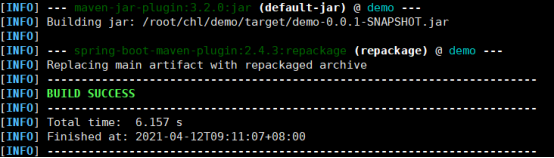
`[root@localhost demo]# ./mvnw clean package`
`[root@localhost demo]# java -jar ./target/demo-0.0.1-SNAPSHOT.jar`
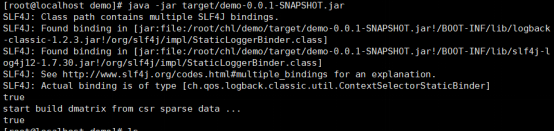
运行成功
- 常见问题
- 进入救援模式
- 进入单用户模式
- grub引导修复
- V10SP1-biosdevname解析
- 外设挂载和卸载
- audit关闭解决方案
- 终端无法切换
- 救援模式取数据
- 网卡更名操作
- 问题复现解决类
- xgboost复现解决步骤
- 激活类
- 麒麟服务器激活常用命令
- 服务器故障激活问题--须知
- 激活权限获得方式
- V10-SP系列服务器激活
- 银河麒麟高级服务器操作系统V7&V10激活手册
- shell脚本类
- 多网卡队列绑定CPU脚本
- 服务器健康检查脚本
- 服务安装配置类
- 银河麒麟高级服务器操作系统V10(sp1)安装手册
- LVM创建
- Chrony时间同步配置
- 搭建网络yum源
- PXE部署实施
- Man手册安装
- 部署VNC服务
- Kylin-Server-V10-SP1-0711-DNS服务单机部署文档
- 麒麟ks文件定制-封装iso文件
- iptables端口配置
- V10-SP1-aarch64安装jdk1.7
- 工具使用类
- cyclictest测试工具
- e2fsprogs工具介绍
- Logrotate工具说明
- nmon工具安装与使用
- 升、降级类
- rsyslog升级报告
- 性能优化类
- 日志轮转
- 大页内存与透明大页详解
- 优化磁盘IO调度方式
- core文件设置
- 分析报告类
- bond模式4协商不通排查
- audit内存泄露问题分析报告
- mate-indicators内核占用过高问题分析报告
- ansible问题-hostname以及lvol报错
- 关于Linux内存计算的说明
- 磁盘IO调度算法
- 硬件相关类
- 串口
- 网络相关类
- bond创建
- 在已配置好网络情况下添加路由
- 网卡配合网桥实现内网互通KVM虚拟机
- Bond模式4协商不通排查过程
- HA高可用
- kylin HA shell实践
- kylin HA概念性及shell使用
- 虚拟化
- KVM创建虚拟机(图形化操作)
- KVM创建虚拟机(命令操作)
- 容器类
- docker-runc升级
- docker基础镜像制作-服务器版
- 麒麟云平台
- USB3.0设备穿透方法(针对win10云主机穿透)
- 麒麟云平台开关机操作说明
- 技术演练