
## **描述**
根据控件的显示文字点击控件,这个使用场景非常多,比如点击“确定”按钮等。
## **语法**
ClickElementByText(*strText[, intIndex = 1[, UseRegExp = False]]*)
**该语法中有下列命名参数:**
| 参数 | 描述 |
| --- | --- |
| strText | 必须的。String类型,表示要点击的控件的文字内容。 |
| intIndex| 可选的。Integer类型,表示次序,如果有多个控件文字都一样,那么这个参数就有用了,依次1、2、3。。。用来区分它们,根据自己的需要使用对应的索引获取,默认是1表示符合条件的第一个控件。 |
| UseRegExp | 可选的。Boolean 类型,表示是否使用正则。如果忽略,缺省值是 False,它表明默认不使用正则。 |
## **返回值**
| Long |
| --- |
| 根据控件内容获取控件成功并且成功点击则返回1,未获取到控件或点击失败返回0 |
## **示例**
> **示例1**
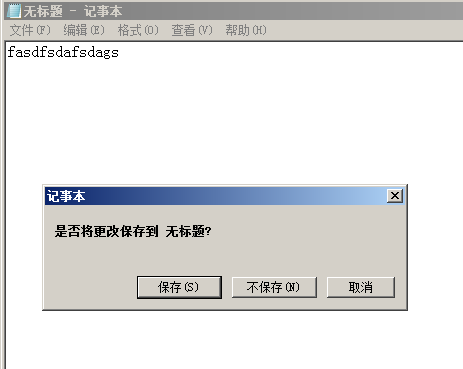
> 说明:打开记事本随便输入点内容,然后点击右上角关闭,这时我们会看到是否保存的对话框,我们用这个函数来点击“不保存”按钮,运行如下代码:
```
Dim w As New clsWindow
MsgBox w.GetWindowByTitle("记事本", 0).ClickElementByText("不保存(&N)")
```
示例1运行后我们会发现窗口关闭了,说明点击“不保存”按钮成功了。
> **示例2**
> 说明:打开记事本随便输入点内容,然后点击右上角关闭,这时我们会看到是否保存的对话框,我们用这个函数来点击“保存”按钮,运行如下代码:
```
Dim w As New clsWindow
w.GetWindowByTitle("记事本", 0).ClickElementByText "保存(&S)"
```
> **示例3**
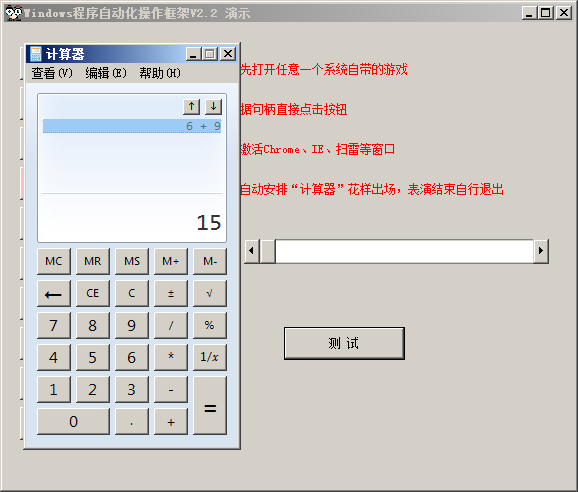
> 说明:直接运行下面代码即可,效果为软件自动调用计算器,然后计算6+9的结果:
```
Private Sub Command1_Click()
Dim w As New clsWindow
w.GetWindowByPID (Shell("calc" , 1)) '打开计算器并获得它的句柄
w.ClickElementByText "6"
w.ClickElementByText "+"
w.ClickElementByText "9"
w.ClickElementByText "="
End Sub
```
- 关于clsWindow
- 一、获取窗口
- GetWindowByTitle 函数
- GetWindowByTitleEx 函数
- GetWindowByClassName 函数
- GetWindowByClassNameEx 函数
- GetWindowByPoint 函数
- GetWindowByAppName 函数
- GetWindowByAppNameEx 函数
- GetWindowByCursorPos 函数
- GetWindowByPID 函数
- GetWindowByHwnd 函数
- Load 函数(同GetWindowByHwnd)
- 二、操作窗口
- Focus 方法
- SetFocus 方法(同Focus)
- FadeIn 方法
- FadeOut 方法
- Transparent 函数
- SetTransparent 函数(同Transparent)
- MakeTransparent 函数(同Transparent)
- Shake 方法
- CloseWindow 函数
- ClassName 属性
- Caption 属性
- Text 属性(同Caption)
- Title 属性(同Caption)
- Value 属性(同Caption)
- ZOrder 方法
- Left 属性
- Top 属性
- Width 属性
- Height 属性
- Visible 属性
- Enabled 属性
- WindowState 属性
- AlphaBlend 属性
- TransparentColor 属性
- CheckWindow 函数
- Move 函数
- MoveToCenter 函数
- Show 函数
- Hide 函数
- Refresh 方法
- SetPosBottom 函数
- SetPosFront 函数
- SetPosNormal 函数
- SetTop 函数
- IsTopMost 函数
- IsForegroundWindow 属性
- Maximized 函数
- Minimized 函数
- Normal 函数
- Restore 函数(同Normal)
- 三、操作控件
- GetElementHwndByText 函数
- GetElementHwndByClassName 函数
- GetElementTextByText 函数
- GetElementTextByClassName 函数
- GetClassNameByHwnd 函数
- GetTextByHwnd 函数
- GetCaptionByHwnd 函数(同GetTextByHwnd)
- SetElementTextByText 函数
- SetElementTextByClassName 函数
- SelectComboBoxIndex 函数
- AppendElementTextByClassName 函数
- Click 函数
- ClickElementByText 函数
- ClickElementByClassName 函数
- SendKeys 方法
- Paste 方法
- FileToClipboard 函数
- ClipboardSetText 函数
- 四、鼠标坐标相关
- ClickCurrentPoint 方法
- ClickPoint 方法
- ClickPointBackground 方法
- SetCursor 方法
- MoveCursor 方法(同SetCursor)
- MoveCursorTo 方法(同SetCursor)
- SetPoint 方法(同SetCursor)
- GetCursorPoint 函数
- GetCursorPosCurrent 函数(同GetCursorPoint)
- MouseLeftDown 方法
- MouseLeftUp 方法
- MouseRightDown 方法
- MouseRightUp 方法
- DragTo 方法
- DragToEx 方法
- 五、应用程序相关
- AppPath 函数
- AppName 函数
- IsWin64 函数
- CommandLine 函数
- AppCommandLine 函数(同CommandLine)
- CloseApp 函数
- ProcessID 函数
- PID 函数(同ProcessID)
- 六、公有方法属性等
- hWnd 公有变量
- DebugMe 公有变量
- Wait 方法
- Version 方法
- 使用范例
- 01 控制微信发送消息
- 02 控制QQ发送消息
- 03 QQ登录器
- 04 花式调用计算器
- 05 用鼠标在画图工具上画圆
- 06 控制记事本输入并保存
- 07 随机移动鼠标防锁屏
- 08 根据ID进入腾讯课堂
- 09 限制程序重复打开
- 10 控制c2p软件将ceb转换为pdf格式
- 11 实战:微便签-窗口特效
- 12 实战:窗口图钉-窗口置顶
- 13 实战:微型按键精灵,录制和播放鼠标动作
- 一些Q&A
- 01 这个框架是免费的吗?
- 02 无句柄的控件元素如何操作?
- 03 目标窗体中有相同类名输入框如何区分填写?
- 04 为什么win10下最大化不生效?
- 05 如何确定绝对或相对坐标?
- 06 相同标题的窗口如何得到所有句柄?
- 联系我们